
https://sites.google.com/view/vitalfinds
Introducing Sites.Google
What is Sites.Google?
Sites.Google is a powerful and intuitive website builder provided by Google. It’s designed to simplify the website creation process, making it accessible to users with varying levels of technical expertise. Whether you need a personal blog, portfolio, or a business website, Sites.Google provides an easy-to-use platform with a range of customizable templates.
Key Features:
- Drag-and-Drop Interface: No coding skills required! Sites.Google employs a user-friendly drag-and-drop interface, allowing you to build your website by arranging and customizing pre-designed elements.
- Integration with Google Services: Seamlessly integrate your website with other Google services such as Google Drive, Google Calendar, and more. This ensures a cohesive online presence across various platforms.
- Responsive Design: Create websites that look great on any device. Sites.Google automatically optimizes your site for mobile responsiveness, ensuring a consistent user experience.
- Collaboration: If you’re working on a project with a team, Sites.Google offers easy collaboration. Multiple users can edit and contribute to the website simultaneously.
- Custom Domain Mapping: Elevate your brand by using a custom domain. Sites.Google allows you to map your existing domain to your new website, giving it a professional touch.
Getting Started: A Step-by-Step Guide
1. Sign in to Google:
To start using Sites.Google, sign in to your Google account. If you don’t have one, you can easily create an account.
2. Access Sites.Google:
Once logged in, navigate to Google Sites. You can find it by typing “Sites.Google” in the Google search bar or by directly visiting sites.google.com.
3. Choose a Template:
Browse through the template gallery and select a design that suits your website’s purpose. There are templates available for portfolios, businesses, personal projects, and more.
4. Customize Your Site:
Use the drag-and-drop interface to add and customize elements. This includes text, images, videos, and other widgets. Experiment with fonts, colors, and layouts to give your site a unique look.
5. Organize and Structure:
Create pages and organize them logically. Sites.Google allows you to build a multi-page website with ease. Consider adding navigation menus for a seamless user experience.
6. Collaborate and Share:
If you’re working on the website with others, use the collaboration features to invite collaborators. Everyone can contribute to the development of the site in real-time.
7. Preview and Publish:
Before making your site live, preview it to ensure everything looks as intended. Once satisfied, hit the publish button, and your website will be accessible to the world.
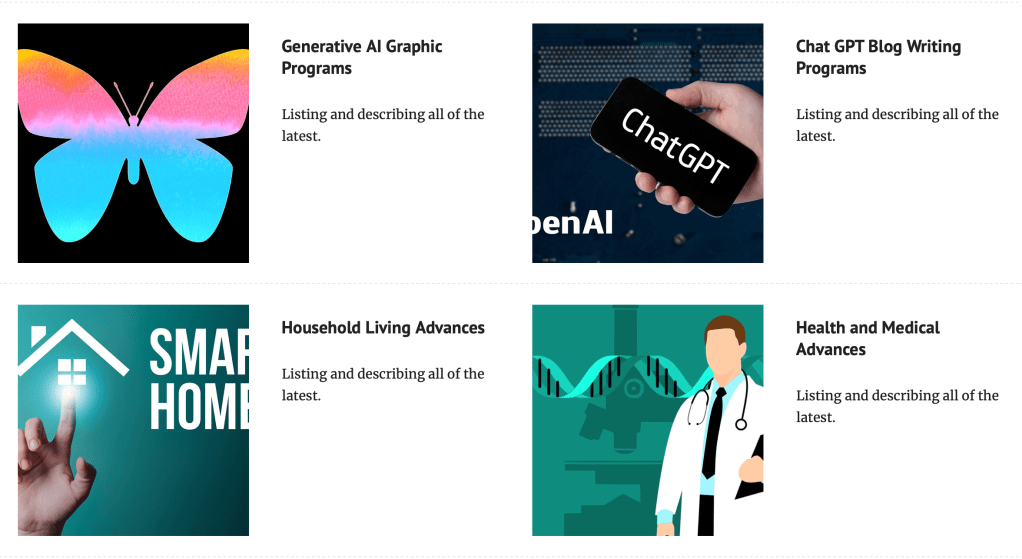
Here is my Google Site: https://sites.google.com/view/vitalfinds/
Conclusion
With Sites.Google, Google has provided a powerful tool that democratizes website creation. Whether you’re a beginner or an experienced user, the platform’s intuitive design and integration with other Google services make it a go-to choice for those looking to establish their online presence. Follow this comprehensive guide, and let Sites.Google be the catalyst for your journey into the world of web development. Happy building!

 Vitalfinds
Leave a comment